Browse the docs
Docs›Getting started
Write your first reply FREE
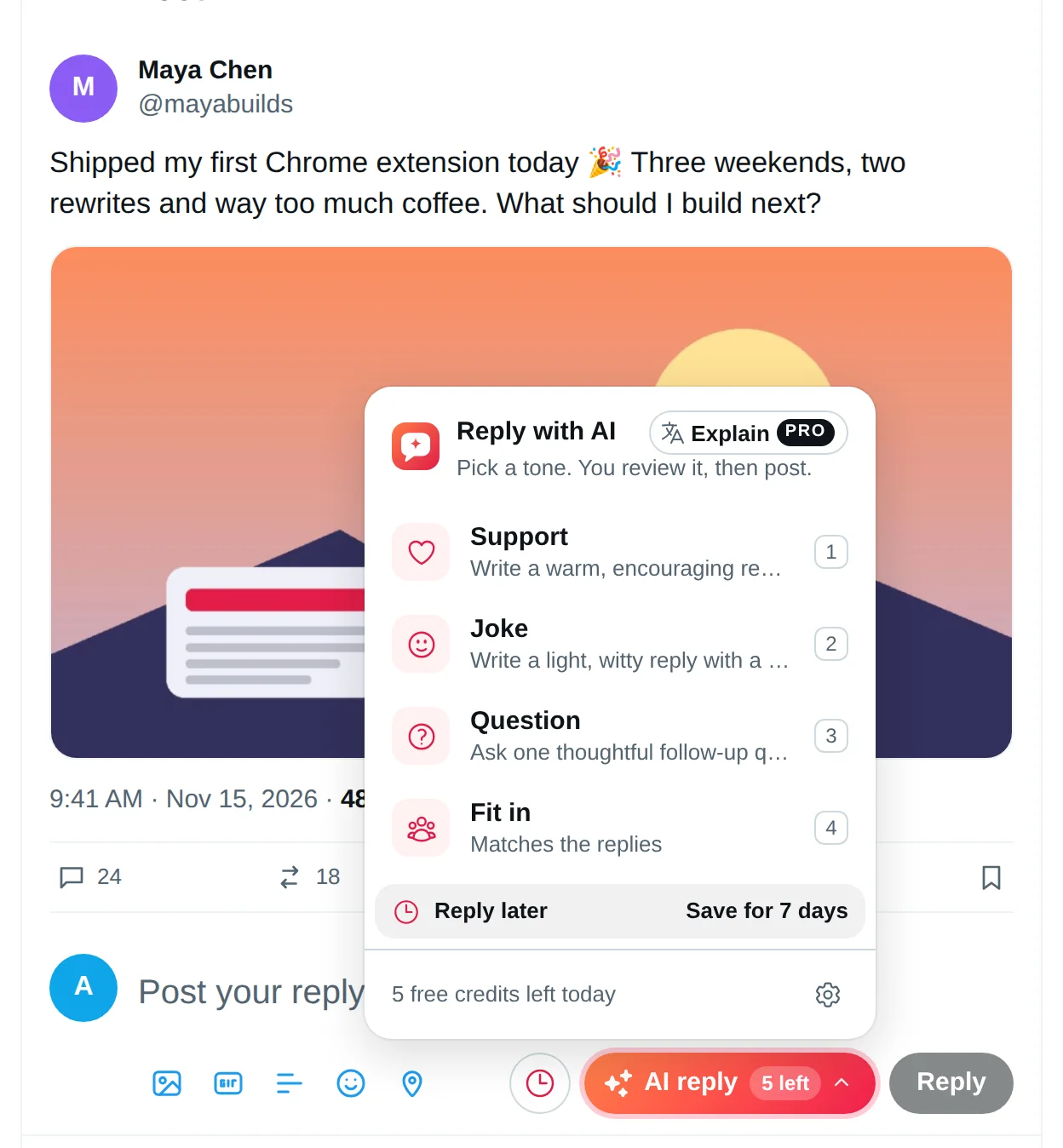
Open a post on X, click AI reply next to Reply and pick a tone. The draft lands in X’s reply box for you to edit and post yourself.
Free for everyone
How to use it
- 1Open a post on x.com (its own page), or press Reply on a post in your timeline to open the reply box.
- 2Click AI reply, the button next to X’s Reply button. Its badge shows the credits you have left.
- 3Pick a tone in the menu, with the mouse or its number key (1 to 9).
- 4The draft is written straight into the reply box. Read it, change what you like, and press Reply on X yourself.
- 5Not right? Undo on the “Draft added” toast puts back what was in the box, and Try again writes another draft in the same tone.
See it in action · 0:12On a demo X page with made-up people. Nothing is posted.
- Open a post on X
- Click AI reply and pick a tone (or press 1–9)
- The draft lands in the box. Edit it, then press Reply
What is sent where
When you pick a tone: the tone’s instructions, the text of the post you’re replying to and, only if the tone uses them, the post’s first image and the replies shown under it. They go to X-Reply’s server and OpenAI to write the draft. X-Reply doesn’t keep the post or your draft.
More in What is sent where and the privacy policy.
If something goes wrong
- “Couldn’t read the post”
- X-Reply couldn’t find the text of the post you’re replying to. Open the post itself, or reload the page and try again.
- A “Your draft” card: “X didn’t accept it in the reply box.”
- X’s editor refused the paste this time. Copy the draft from the card, paste it into the reply box, then reload x.com. If it keeps happening, email us so we can fix it.
- “No draft this time”
- The card says why, for example “The AI isn’t answering right now. Try again in a moment.” Press Try again. When the AI doesn’t answer, nothing is charged.
Still stuck? Help and contact.