Browse the docs
Docs›Writing replies
Reply settings: language, length and the button FREE
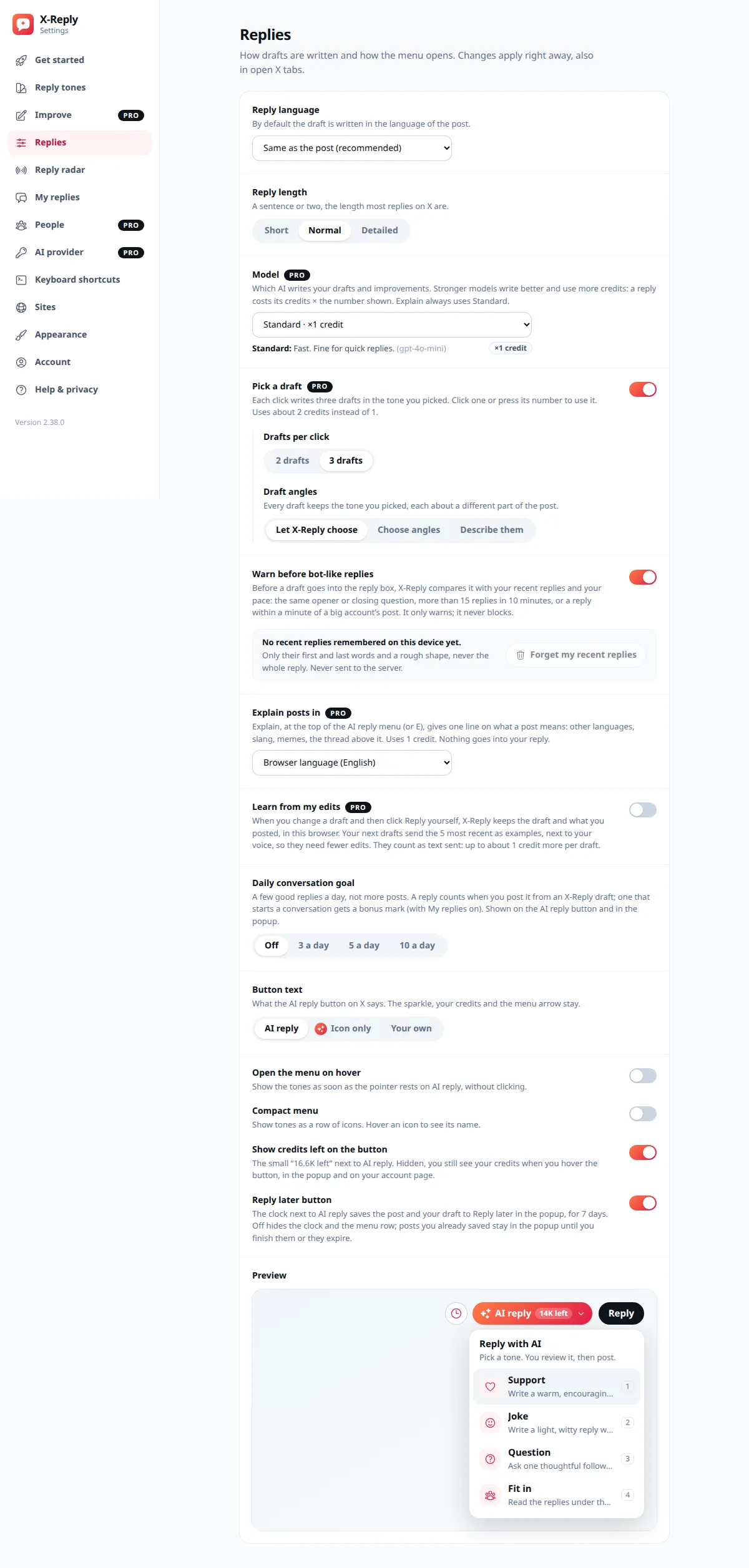
Settings › Replies sets the language and length of every draft, how the AI reply button looks and opens, and the Pro options for drafts.
Free for everyoneSettings › Replies
How to use it
- 1Reply language: by default each draft is written in the language of the post. Pick a language to always write in it.
- 2Reply length: Short (one short sentence), Normal (a sentence or two, the length most replies on X are) or Detailed (more detail, up to X’s 280 characters).
- 3Button text: keep “AI reply”, pick Icon only (just the sparkle, your credits and the menu arrow, for a narrower button) or Your own (up to 20 characters, emoji welcome). Left empty, Your own says “AI reply”; X’s quote composer keeps “AI quote”.
- 4Show credits left on the button, Compact menu and Open the menu on hover change how the AI reply button looks and opens. The preview at the bottom shows the result.
- 5Reply later button and Warn before bot-like replies switch those features on or off; Daily conversation goal sets a goal.
- 6With Pro: Pick a draft (2 or 3 drafts per click and their angles), Model, Explain posts in, and Learn from my edits.
See it in action · 0:11On a demo X page with made-up people. Nothing is posted.
- Open Settings › Replies
- Pick the reply language and length
- Every draft follows them
If something goes wrong
- A setting is greyed out with a PRO tag
- It is part of Pro. Go Pro opens the plans on your account page.
- My own button text ends in “…”
- Long words and wide scripts such as Japanese can be wider than the button allows. Hover the button to read all of it, or pick a shorter text.
Still stuck? Help and contact.