Browse the docs
Docs›Writing replies
Use your own AI key PRO
Run drafts, Improve and Explain on your own OpenAI, OpenRouter, Anthropic, Gemini, xAI, DeepSeek, Mistral or Groq key, with no X-Reply credits.
How to use it
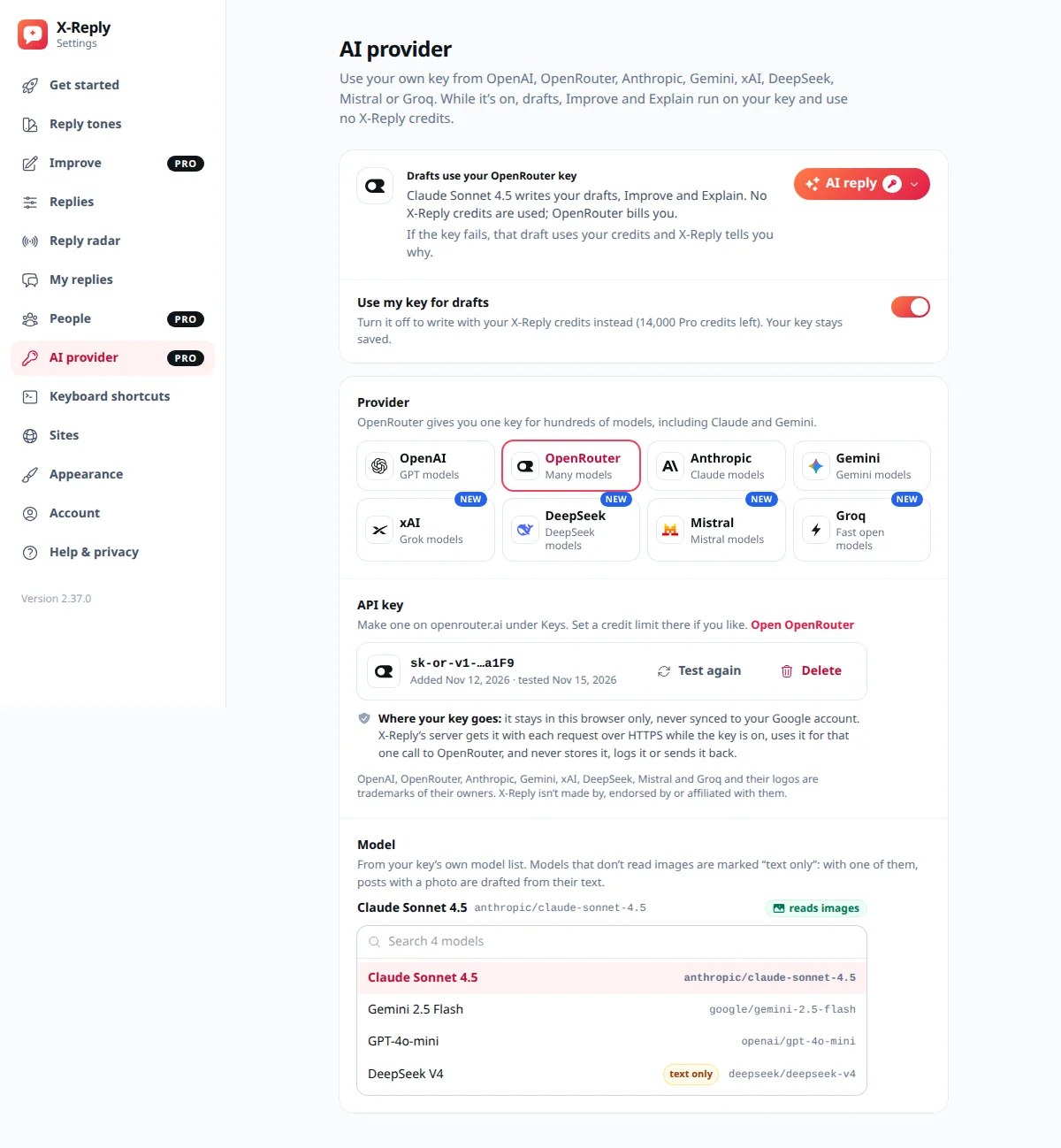
- 1Open Settings › AI provider and pick your provider (each tile shows its logo): OpenAI, OpenRouter, Anthropic, Gemini (Google AI Studio), xAI (Grok), DeepSeek, Mistral or Groq.
- 2Paste your API key and press Test key. X-Reply asks the provider for the key’s models from the Settings page, and only a key that passes is saved. For providers other than OpenAI and OpenRouter, the test also sends one tiny request, which costs a few tokens on your key.
- 3Pick a model from the key’s own list. Models that don’t read images are marked text only: with one of them, a post’s photo isn’t sent and the draft is written from its text.
- 4While Pro is on and “Use my key for drafts” is on, drafts, Improve and Explain run on your key and your provider bills you. The AI reply button shows a key icon instead of the credits left (hover it to see the provider and model) and the menu says “No X-Reply credits used”.
- 5To write with your X-Reply credits for a while (the key’s spend limit is reached, or the Settings › Replies model is enough for everyday replies), turn off “Use my key for drafts” at the top of Settings › AI provider, or click the key row in the AI reply menu on x.com. Both are the same switch. Drafts, Improve and Explain then use your credits and the model in Settings › Replies; the key stays saved, so turning it on again needs nothing pasted or tested.
- 6Test again checks the key; Delete removes it from this browser.
- Open Settings › AI provider
- Paste your key and click Test key
- Pick a model. Drafts now use your key, no credits
What is sent where
Your key stays in this browser only and is never synced. With each request, while the key is on, it goes to X-Reply’s server over HTTPS, is used for that one call to your provider, and is never stored, logged or sent back. The post, your tone and your voice go to your provider instead of X-Reply’s OpenAI account. On Gemini’s free tier, Google may use what it receives to improve its products (turning on billing stops that); DeepSeek’s privacy policy says it processes and stores what it receives in the People’s Republic of China.
More in What is sent where and the privacy policy.
If something goes wrong
- “Your key didn’t work this time” (key not accepted)
- The provider refused the key. That draft was written with X-Reply credits. Fix my key opens Settings › AI provider: paste a new key and test it.
- “Your key didn’t work this time” (no credits left on it)
- Add credits or turn on billing with your provider.
- “Your key didn’t work this time” (model not offered)
- Pick another model from the key’s list in Settings › AI provider.
- “Your key didn’t work this time” (rate-limited, or provider not answering)
- Your provider is busy or down. That draft used X-Reply credits; try again later.
- “Pro is off, so your key is paused”
- Your key is used only while Pro is on. Renew Pro, or delete the key.
- The menu says “Your … key is off” and the button shows credits
- “Use my key for drafts” is off, so your X-Reply credits write the drafts. Click that row in the menu, or turn the switch on in Settings › AI provider.
- “Too many requests on your own key. Wait a minute, then try again.”
- More than 20 requests a minute went to your key. Wait a minute.
Still stuck? Help and contact.
Related
OpenAI, OpenRouter, Anthropic, Gemini, xAI, DeepSeek, Mistral and Groq and their logos are trademarks of their owners. X-Reply isn’t made by, endorsed by or affiliated with them.