Browse the docs
Docs›Writing replies
Reply tones FREE
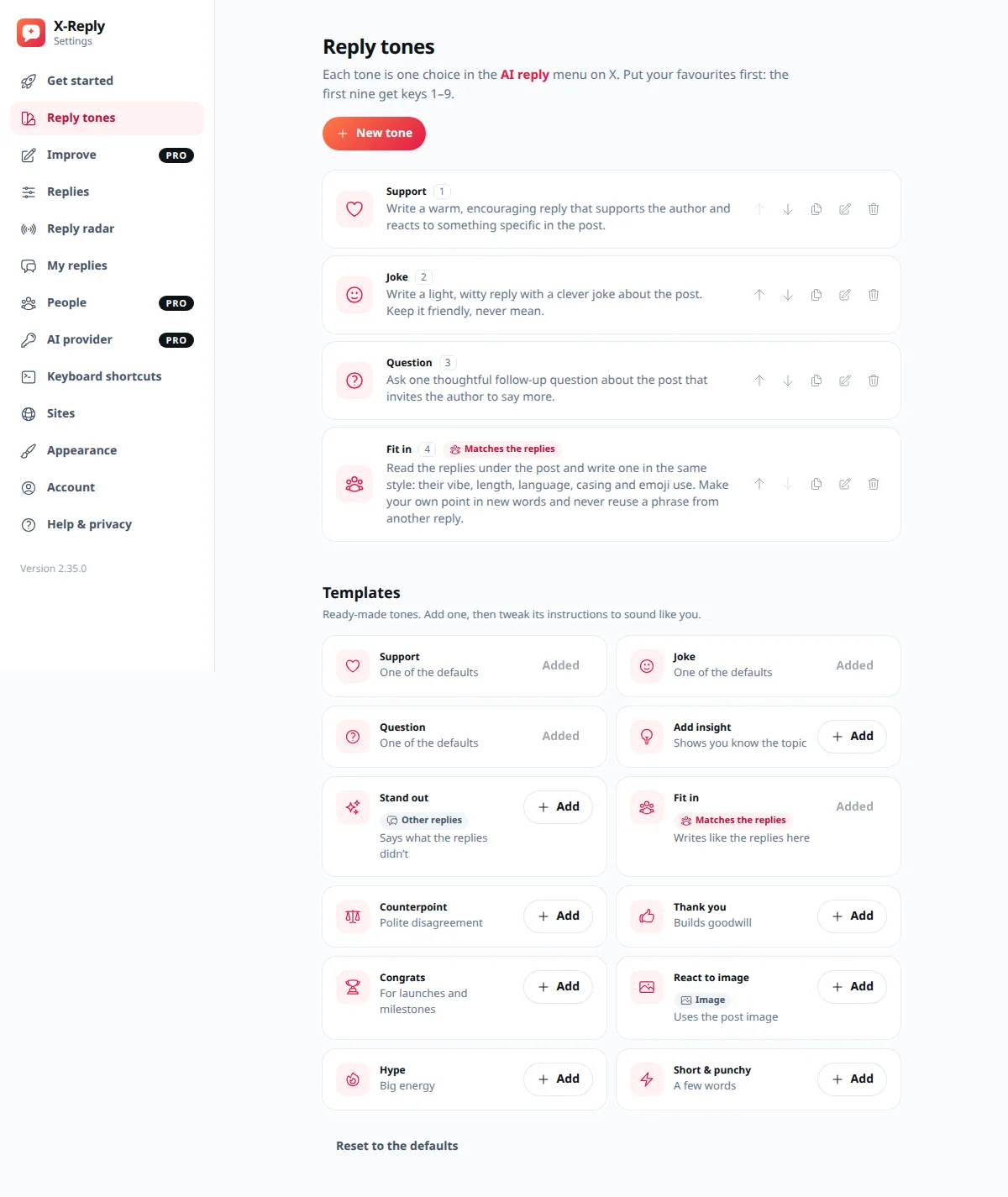
Tones are the instructions behind each draft. Edit the built-in ones or write up to 12 of your own, each with its own icon and options.
Free for everyoneSettings › Reply tones
How to use it
- 1Open Settings › Reply tones. A new install starts with Support, Question, Joke and Fit in.
- 2Click a tone to edit its name, icon and instructions, for example “short, casual, no emojis, mention my experience as a designer”.
- 3Turn on Use the post’s image to send the post’s first image (shrunk to 512 px) so the reply can mention it. It costs a bit more than a plain reply.
- 4Turn on Read the other replies to send the replies shown under the post, then pick what to do with them: Say something they didn’t, or Write the way they do.
- 5Move tones up or down: the order is the menu’s order and its number keys. Templates adds ready-made tones, and Reset to the defaults brings the built-in ones back.
See it in action · 0:12On a demo X page with made-up people. Nothing is posted.
- Open Settings › Reply tones
- Edit a tone or add your own: name, icon and instructions
- Save it. It shows in the AI reply menu on X
What is sent where
The instructions of the tone you pick go with that draft to X-Reply’s server and OpenAI. Your tones themselves are kept in Chrome’s synced storage, not on X-Reply’s server.
More in What is sent where and the privacy policy.
If something goes wrong
- A tone is greyed out: “Open the post to use its replies”
- That tone reads the replies under the post, and the reply popup from your timeline shows none. Open the post itself, then pick it there.
- Drafts have no hashtags or emojis
- X-Reply leaves them out unless the tone asks for them. Say so in the tone’s instructions.
Still stuck? Help and contact.